
See how Flownex, ADT TurboDESIGN, and Ansys can be used to expedite and optimize turbopump design for propulsion systems in this joint webinar presented by PADT and ADT.
Tag: fluid dynamics
Custom Result Layers in Flownex

Flownex Tech Tip #5
The result layers in Flownex have evolved quite a bit over the last few iterations of the code. Although we might typically associate color-gradient results more with 3D CFD, it does have a place in 1D system modeling. Taking advantage of results layers in Flownex can give a very quick understanding of what is going on with our system, and, with a little customization, can be incredibly powerful as an addition to our design and analysis toolbelt. In this post I am using Flownex version 8.12.7.4334.
How to create a result layer
To create a custom result layer we must navigate to the results ribbon and select result layer setup.

First we want to right-click in the Result Layers window and add a new result layer.

There are two options to add the schema for our result layer. The first is to right-click on the Selected Result Layer Schemas and add either a specific or generic schema. The second, and my PREFERRED, method is to simply drag and drop results from components on the canvas into this window:

Note that I want to multi-select any component types which will be included in this result layer. This could be any flow components which share a common result such as “quality”. I also convert to generic because I want the result layer to apply to all pipes, not just the pipe I initially drag and drop the property from.
Defining the custom result layer
In this example I have a two-phase water network with a cold external temperature. I want to create a result layer to quickly see if the water is in the gas phase, liquid phase, or somewhere in-between. The problem I have been tasked with solving is ensuring that the water never condenses. I will need to determine where we may need to add additional heat flux to the network.
We can use the Quality result property to determine the phase of our fluid. Quality < 0 indicates fully liquid, quality between 0 and 1 indicates liquid/gas mixture, greater than 1 indicates fully vapor.
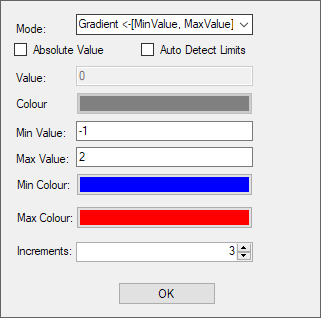
To make this work as intended I can set up a gradient with three increments going from -1 to 2. The idea being the lowest increment would encompass -1 to 0, middle increment would be 0 to 1, and the top increment would be 1 to 2. For the gradient mode I made sure to pick <-[MinValue, MaxValue]-> so that the max and min increments would extend past the specified range.
As we apply this to our network we can easily see that we do, in fact, have a phase change from gas at the inlet, to mixture in the second two component, to fully liquid near the outlet.
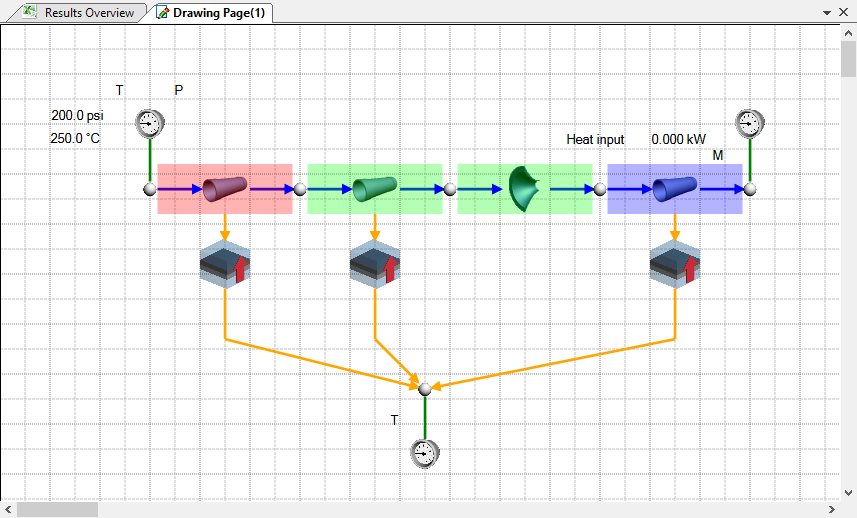
I may decide to add a heater to our outlet pipe and perhaps a thicker insulative layer to all three to attempt to keep the water in gas phase throughout the system.

Bonus Tip!
- Result layers can also be super handy when troubleshooting to quickly identify large pressure differentials, choking points, or other outlying fluid properties.
Input Sheet Hacks in Flownex

Flownex Tech Tip #3
Building on last week’s global parameters example I’d like to show some tricks within the input sheet environment. These are really more so excel tricks – but the methodology within Flownex is slightly different. In this example I am working in Flownex Version 8.12.7.4334
Refresher on using Input Sheets
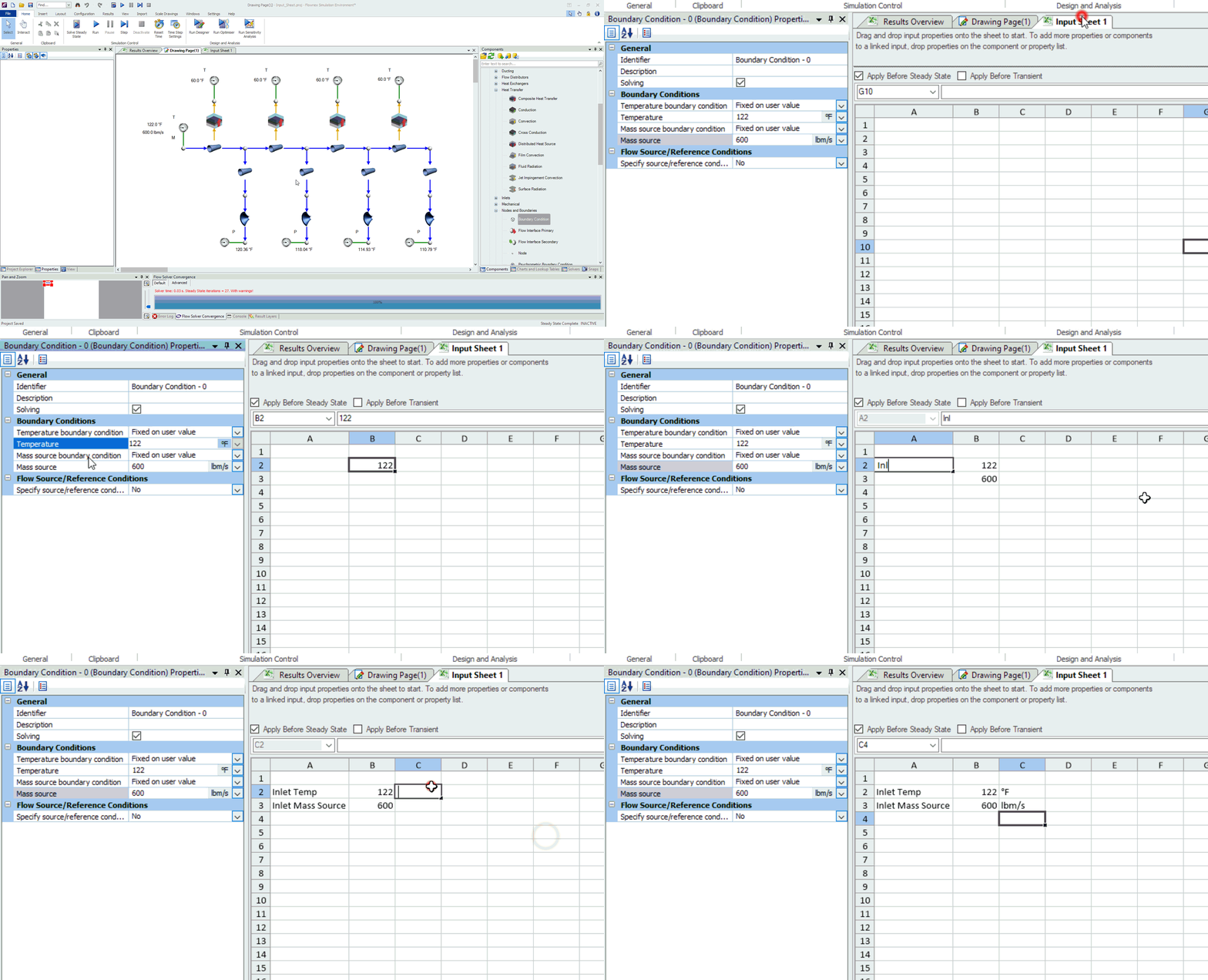
To create a new Input Sheet we will navigate to the project tab, then select “Excel Reports/Pages”, right-click on the Input Sheets folder, and select “New Input Sheet”

To add inputs to the sheet it’s as simple as dragging and dropping the inputs from the component into the desired cell in the Input Sheet.
Formatting our Input Sheet
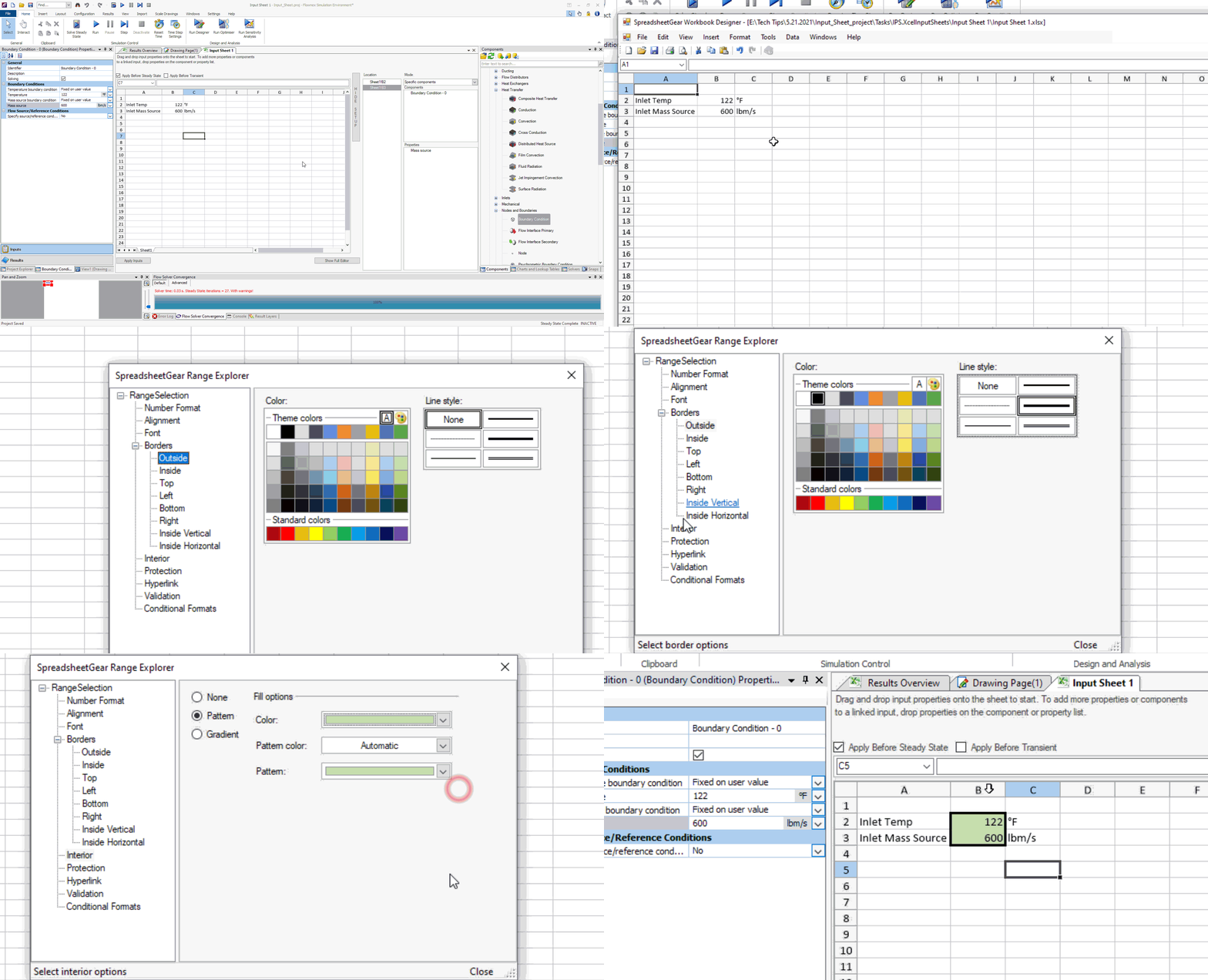
I like to use color, shading, and border to specify which cells contain inputs so that if I pass the project off to a client or colleague it is immediately clear what variables they should be editing and which cells they shouldn’t change.
To modify the formatting we need to enter “workbook designer”. This is done by right-clicking on the input sheet and selecting “workbook designer”
All of the standard Excel-type formatting is available here, including adding graphs, images, etc. Typical operations are found in the format menu on the top ribbon.
Drop Downs
A more advanced Excel operation I like to integrate into these types of input sheets is a drop-down where multiple inputs may be tied to a given condition. In the example below I set up a scenario for given ambient temperature for cold day, hot day, and nominal day.
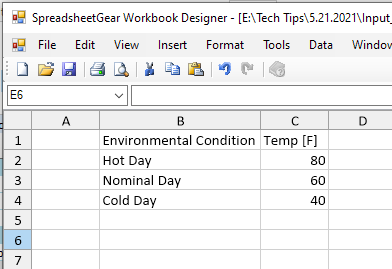
In the workbook designer we will click “insert” > “worksheet” and build our list of environmental conditions. On the right we will set the associated temperatures.
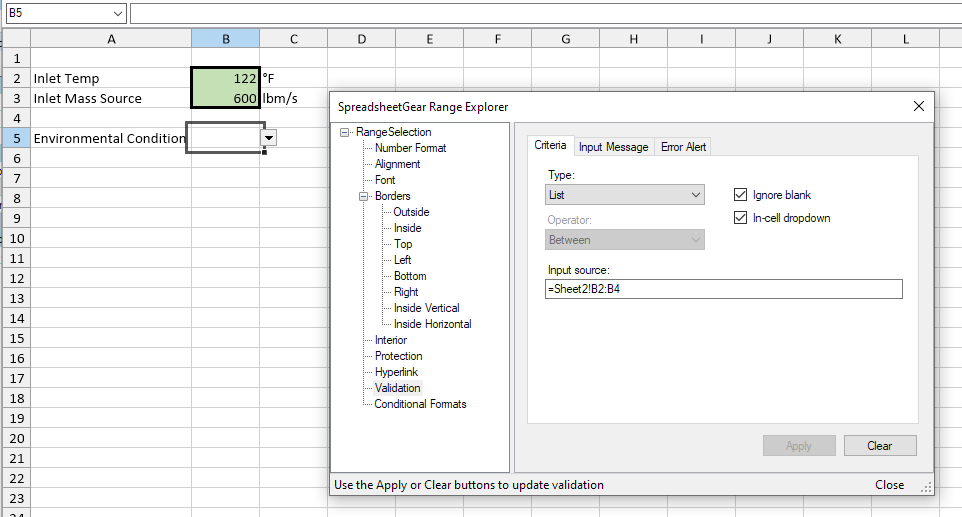
Back on Sheet1 we will need to set up the data validation cell reference to this table. Select the cell where we want to add the dropdown and go to data > validation. We will choose list, and reference cells B2:B4 of Sheet2.
We will need to use VLOOKUP to associate the temp to another cell based on this dropdown. Where this becomes valuable is when we have many input variables tied to each of the dropdown selections.
In this example, since we’ve put the applicable temps a single column to the right the syntax for VLOOKUP will be “=VLOOKUP(B5,Sheet2!B2:C4,2,FALSE)”. After this is added it should behave as follows:
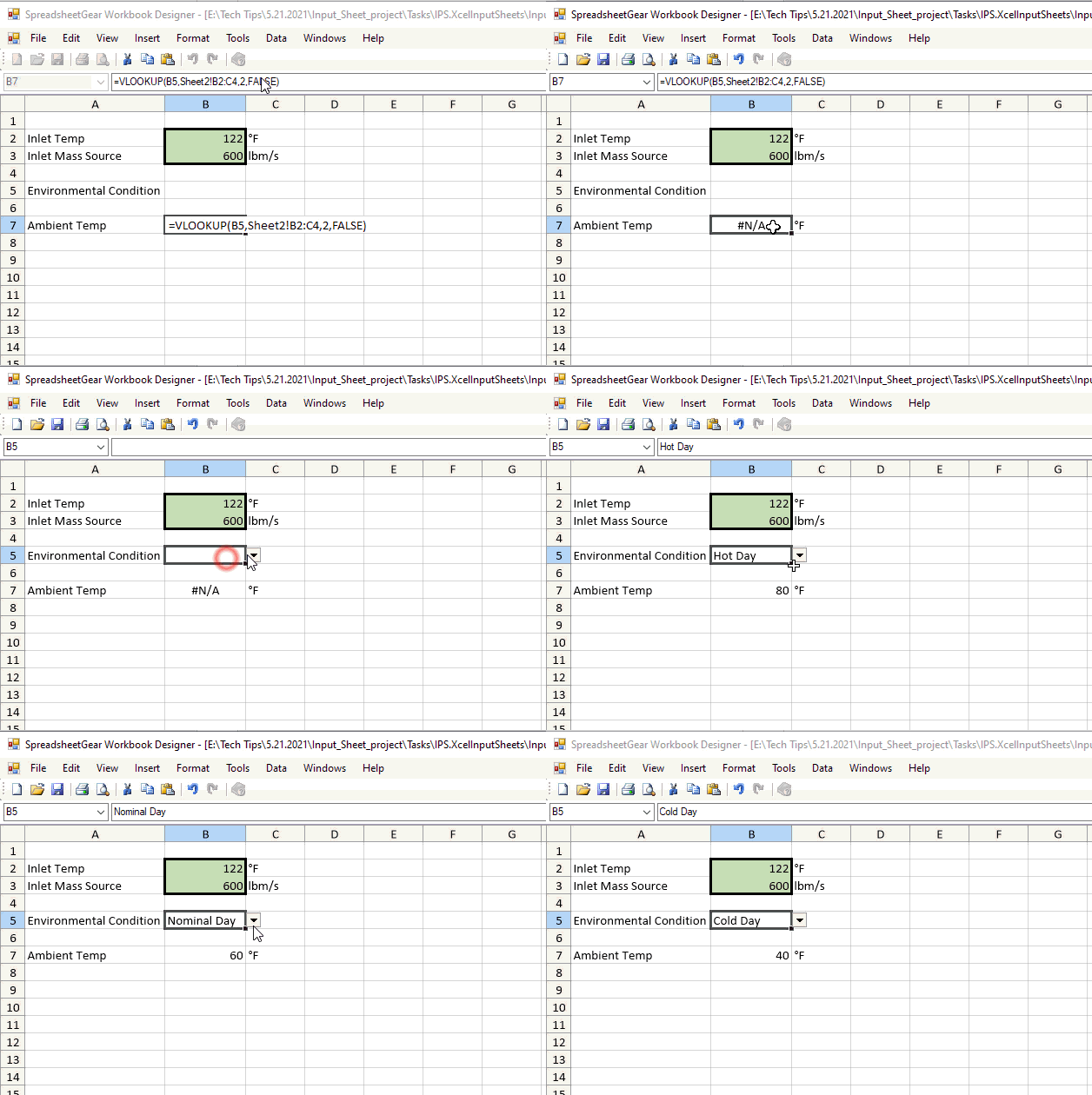
As I mentioned before, this trick becomes very powerful when you have many different environmental or operational inputs tied to a single “scenario” that you want to model in an individual run rather than in a parameter study.
Bonus Tip!
- All of these tricks can be applied to any of the excel-type sheets within Flownex. Remember to be careful with parameter tables as the inputs and results are tied to the columns instead of individual cells.
Working with Global Parameters in Flownex!

Flownex Tech Tip #2
As we build more and more networks it quickly becomes tedious to enter in the same inputs many times. There are a couple methods of using global parameters to save us lots of time and clicks. In this example I am working in Flownex Version 8.12.7.4334
Refresher on Global Parameters
Global parameters are just what they sound like. Parameters defined globally for the project. These could be any type of component input; diameter, length, temp, pressure, etc.
The global parameters can be found in a couple of locations. Under the configuration ribbon we can open the global parameters in a floating window which gives us a friendly interface for creating or modifying these parameters. To create a global parameter one may simply right-click in the GlobalParameters window and select Add (hint: there’s a better way!).

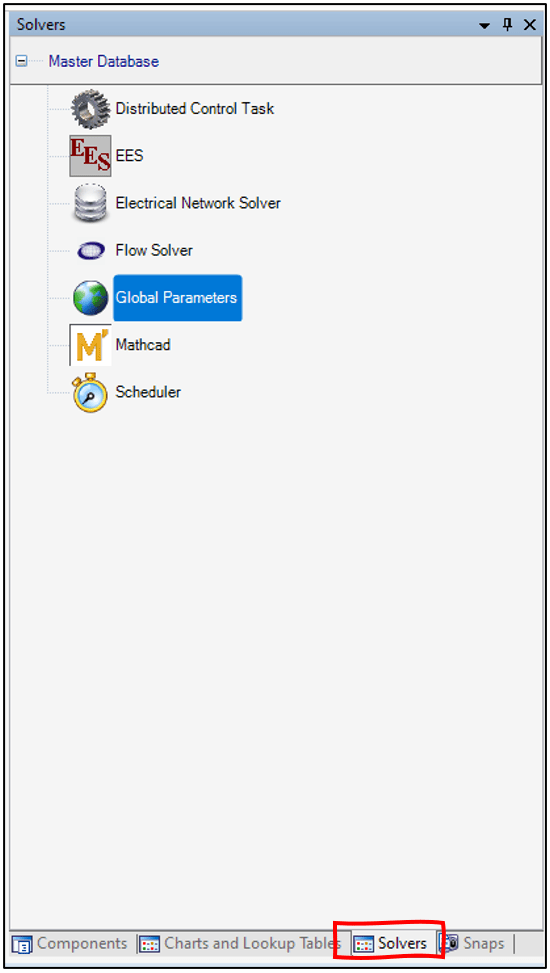
Global parameters can also be accessed in via the solver tab in a similar way to typical inputs (this is important later on).

The Quick way to add Global Parameters
We don’t really want to have to navigate to that configuration ribbon, right-click a bunch, choose names and assign units do we? Good news! There is a much faster way to add a global parameter. We can add a global parameter with minimal work by simply typing a dollar sign “$” prefacing the name of the tag in any of our component input fields! Remember to hit enter after typing the identifier.
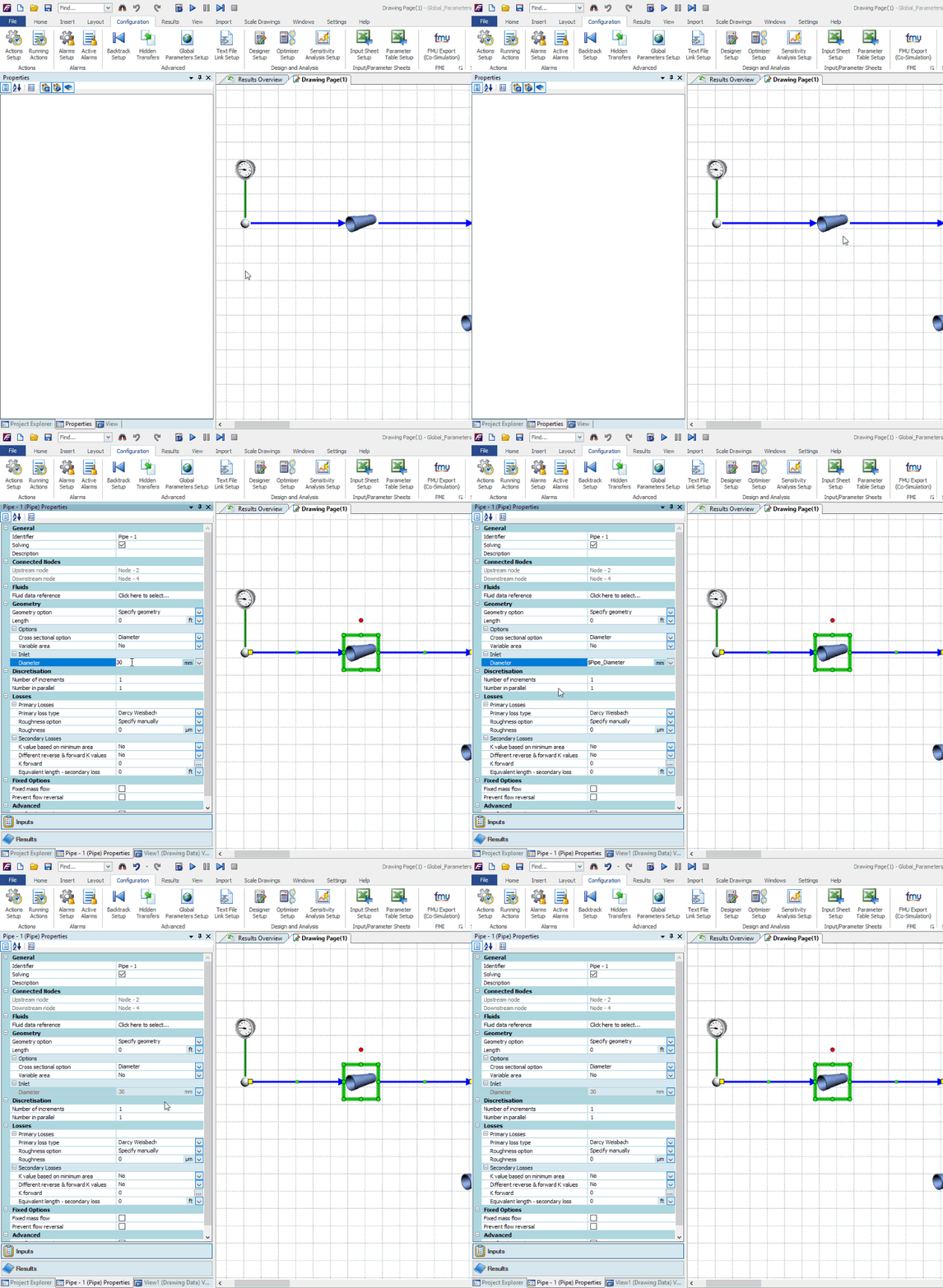
Once a global parameter has been defined we can tie more inputs to the existing parameter by typing the dollar sign “$” and choosing the correct parameter from a drop down:

As you can see, this can be quite a time saver when building a network! The next trick utilizing global parameters will have to do with using them for actual analysis.
Using Global Parameters as Manipulatable Inputs
The default/slow way to change a global parameter would be to go to the configuration ribbon > global parameters, and manually change the value in the floating window. No thanks. This is not automated at all and requires many clicks.
The better way to utilize the global parameter as an input would be to tie the global parameter to an input sheet, parameter table (for a parametric study), or even a human machine interface component (HMI).
Global Parameters in Input Sheet
For a design variable that an analyst or engineer may change which would then remain constant (such as pipe diameter) the input sheet comes in very handy. To reference a global parameter in the input sheet recall the second method to access the global parameters and then simply drag and drop onto the input sheet:
Global Parameters in Parameter Table
If you are trying to run a parametric study where you are varying something like ambient temperature, it makes sense to use a global parameter as you may have many boundary conditions defined by a single global parameter. Similar to the input sheet this can be tied to a global parameter by a simple drag and drop operation:

Global Parameter in a Human Machine Interface
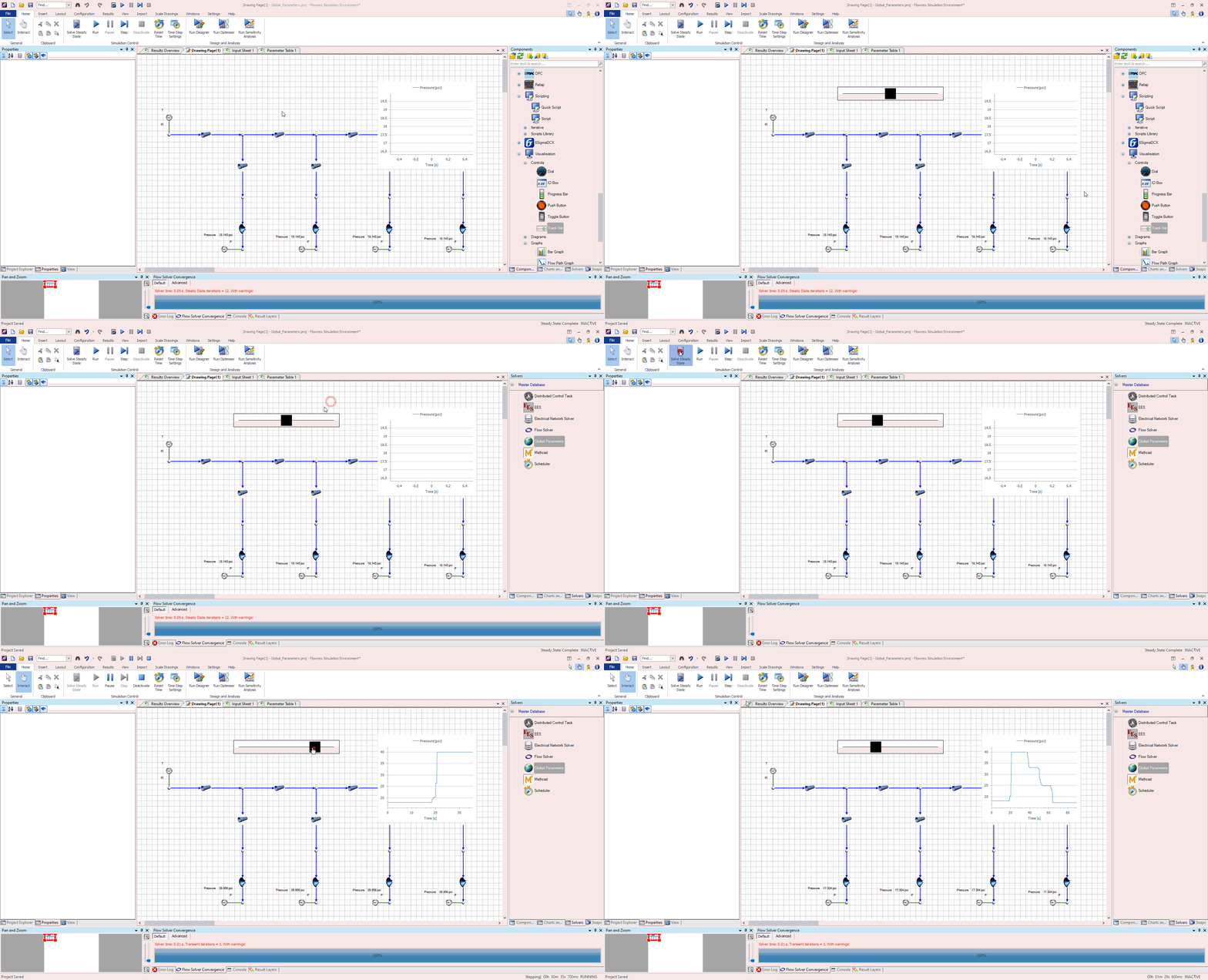
By now I expect you are catching on. The trick to defining a global parameter externally is to use the second method; solver tab > global parameters, and then drag and drop to your desired connection. In the HMI instance I’ve tied inlet mass flow to a Track Bar so that a user can dynamically change the flow rate during the solve:

Global Parameters are efficient and POWERFUL
We can use global parameters during network construction using the “$” shortcut to build our networks much more quickly and keep identical inputs the same. We can tie these global parameters to other tools to keep our user inputs all in one place, reducing clicks, and reducing the chance of forgetting to update an input.
Bonus Tips!
- Global Parameters can also be used in Designer so that you can keep your independent to dependent variable count the same (EX: Adjusting ALL pipe diameters to target a single exit flowrate)
- Global Parameters can be adjusted via transient actions (EX: Adjusting ambient temperature to model the changing temperature over the course of 24 hours).
 Miles Adkins